Describe the idea
Name the subject, setting and mood. Add exact wording in quotes for a poster or invitation.
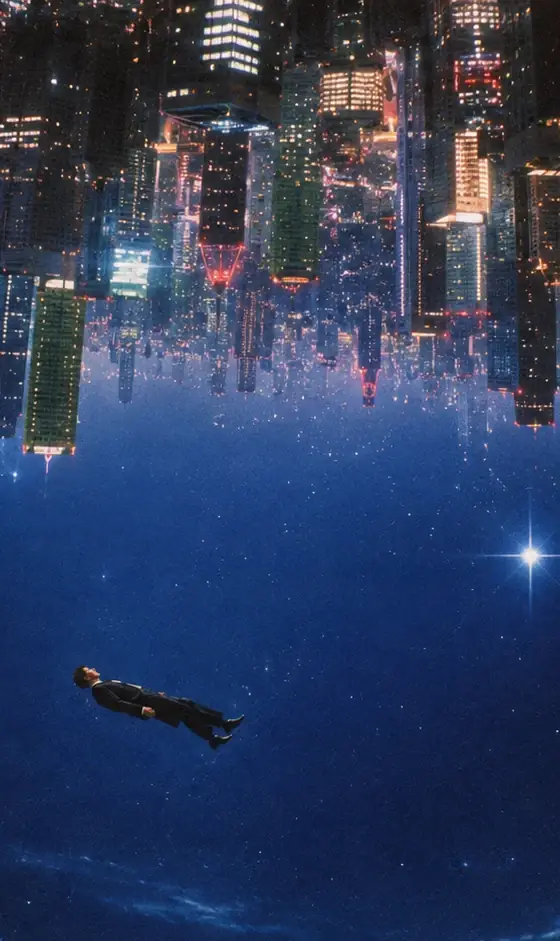
A little imagination. A whole new image.
GPT Image 2.5 renders from a prompt or reworks a reference: change the setting, style or composition and the subject still comes back intact. Lettering on posters and infographics stays legible, at 1K or 2K, from up to eight reference images.
Text to image · Reference editing · Flare and Sunburst, the two ChatGPT Images 2.5 models
ExamplesFROM IDEA TO IMAGE
Name the subject, setting and mood. Add exact wording in quotes for a poster or invitation.
Choose a model, size and aspect ratio. Add a reference when a particular subject or composition matters.
Check the details, adjust your brief and save the version you like. Small, specific changes make useful next steps.
THE POSSIBILITIES, IN PICTURES
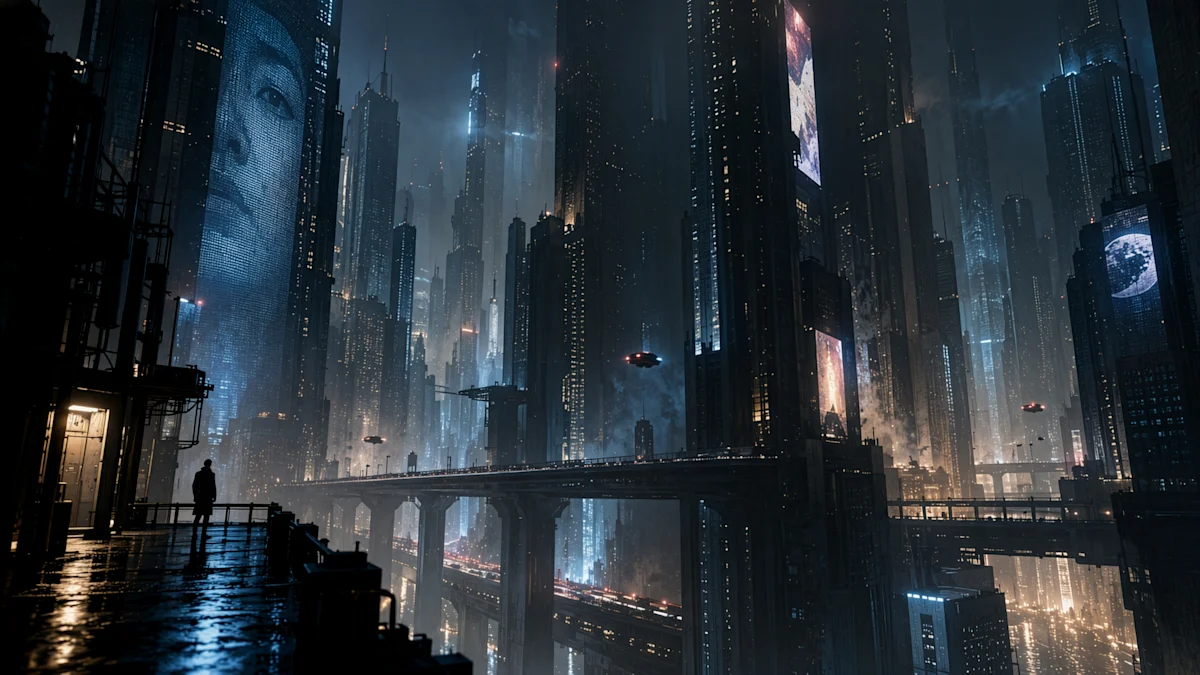
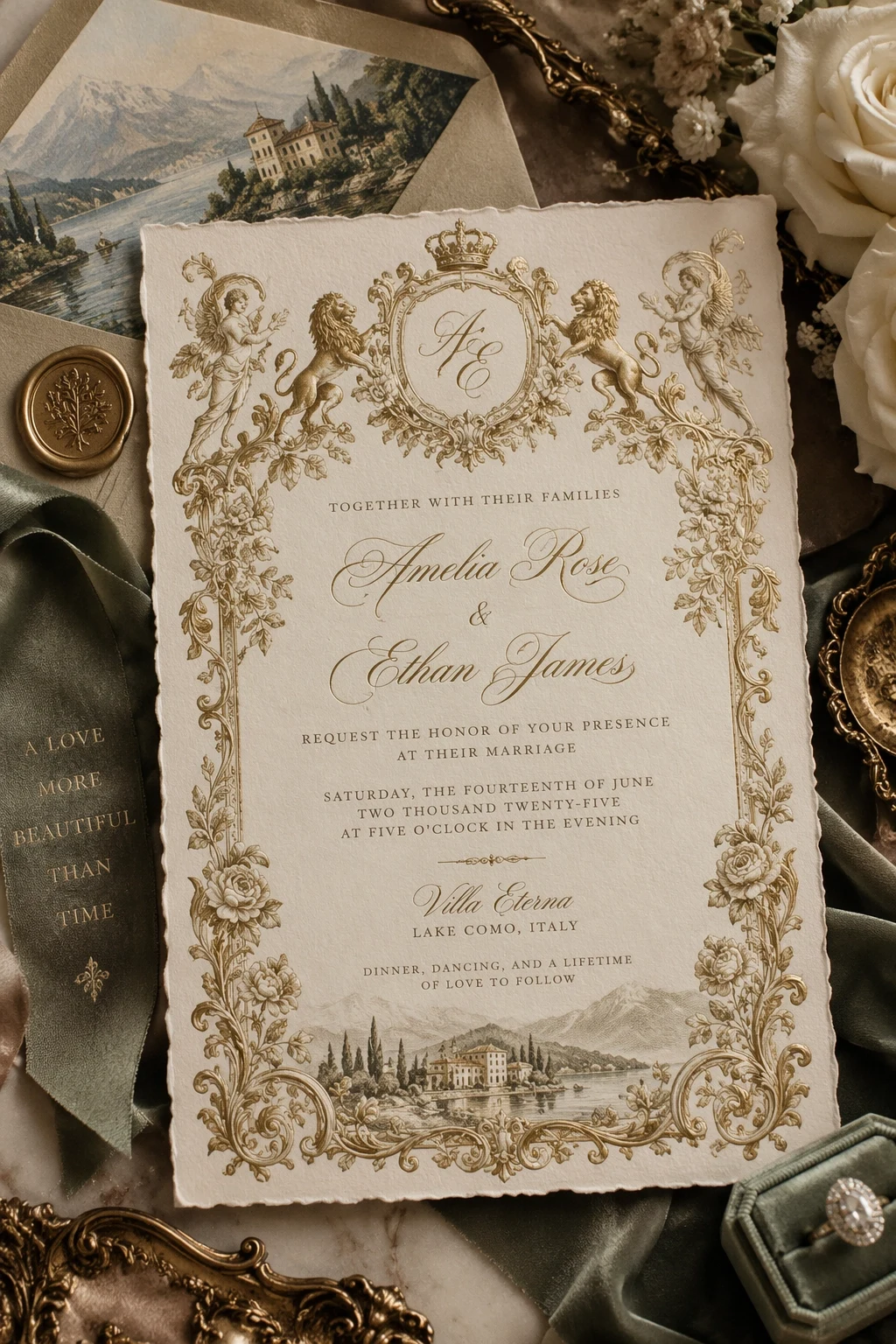
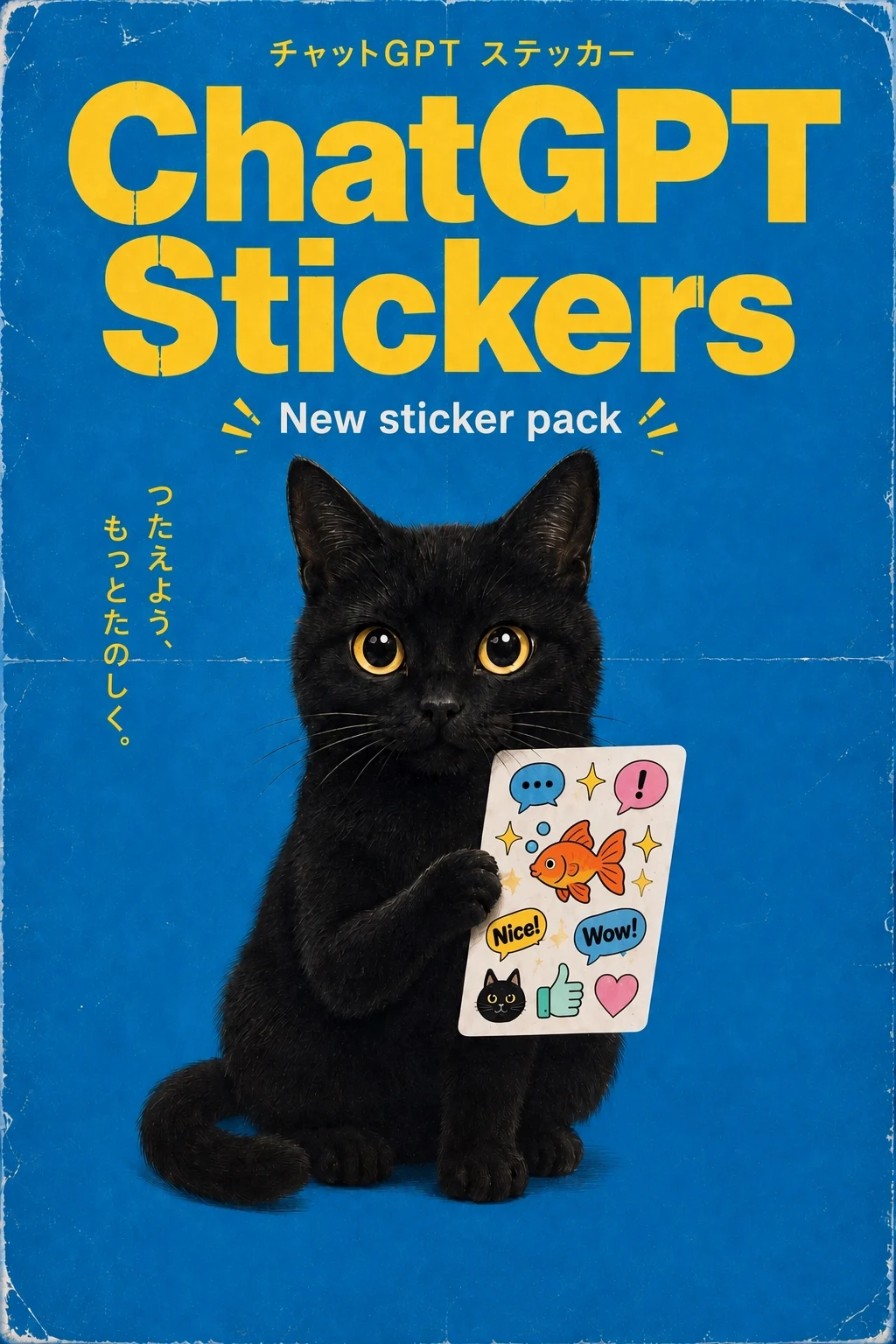
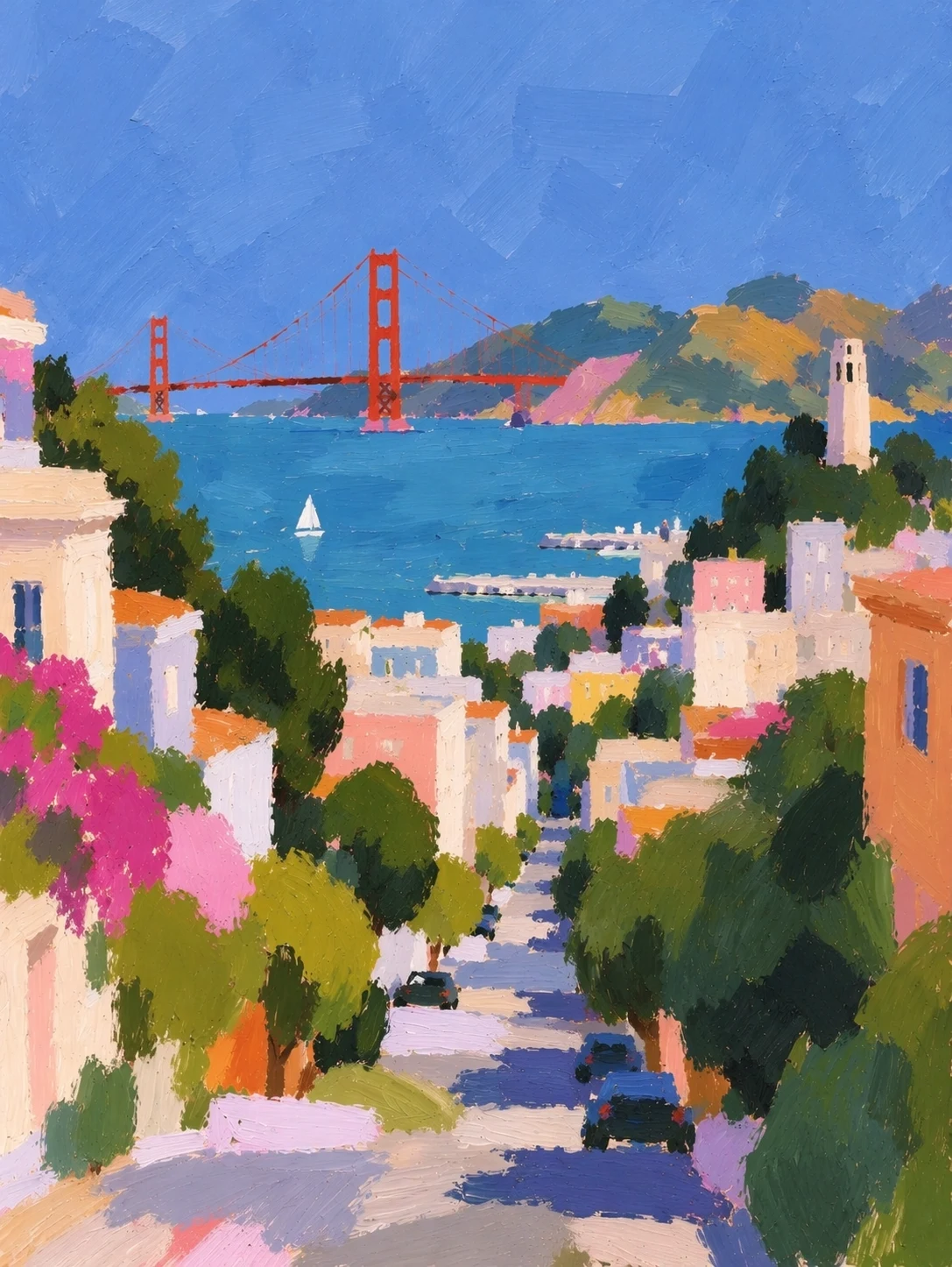
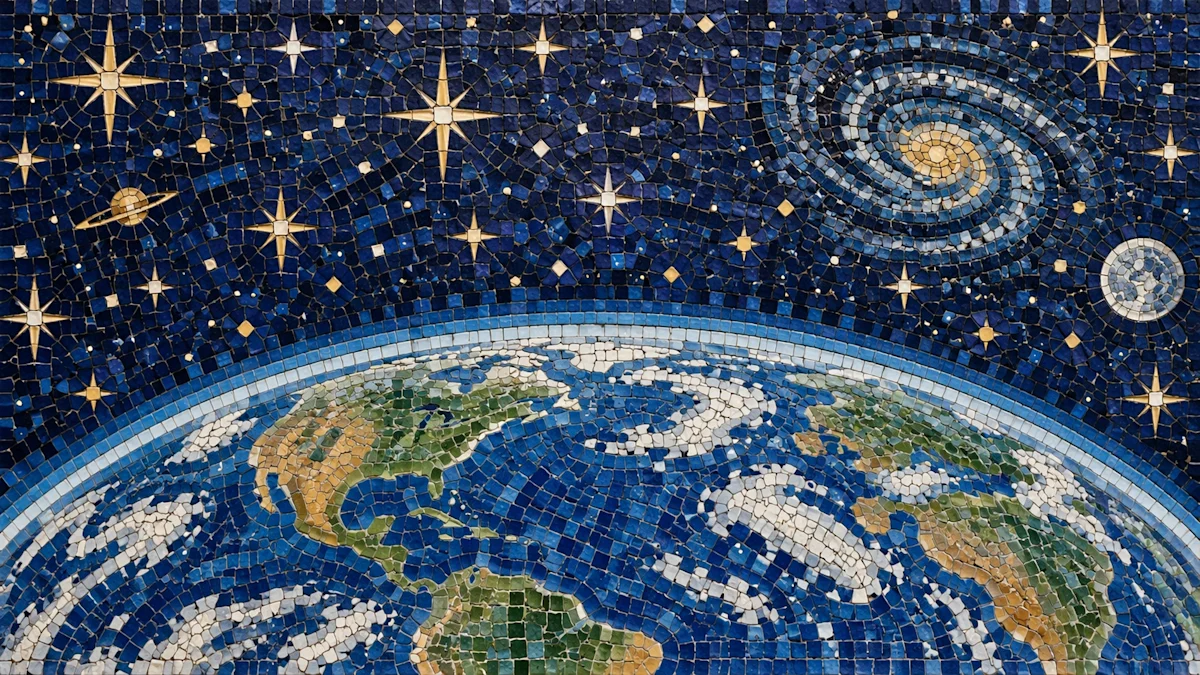
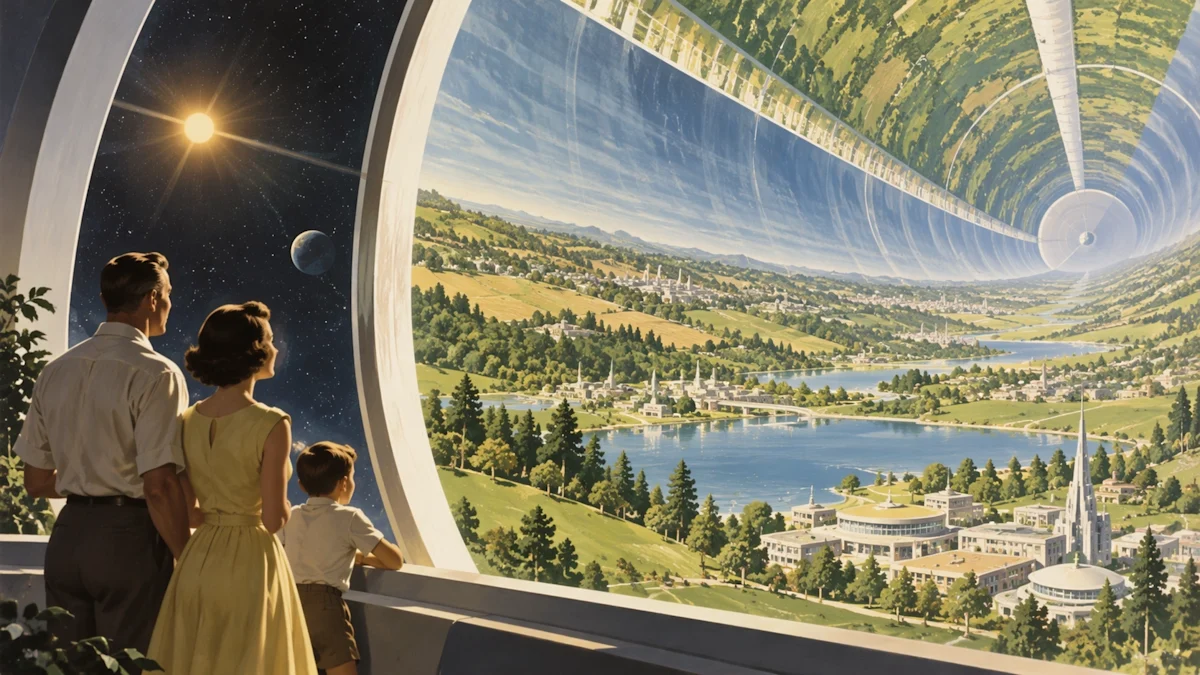
Explore official ChatGPT Images 2.5 examples, then bring a different point of view to your own brief.
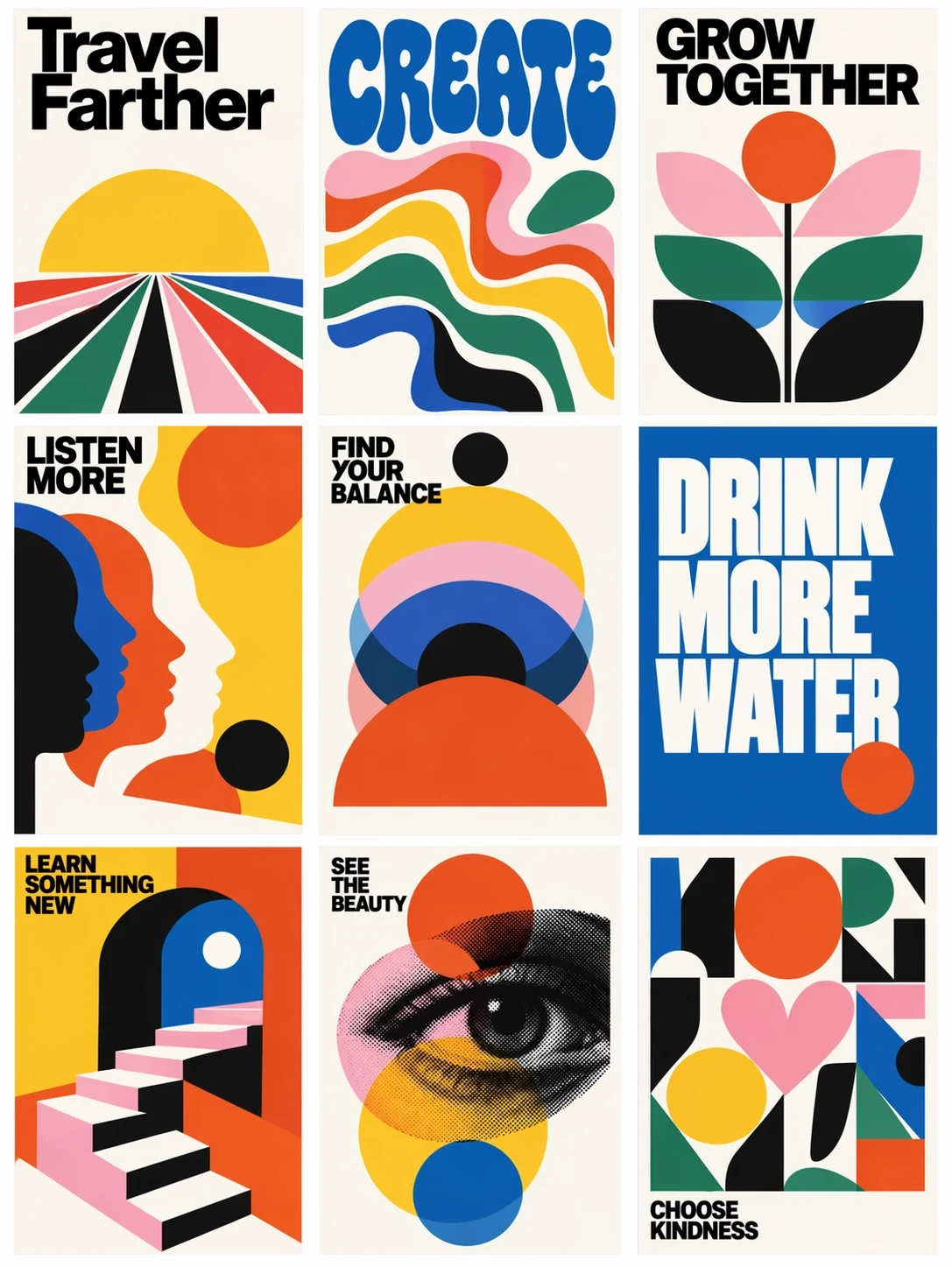
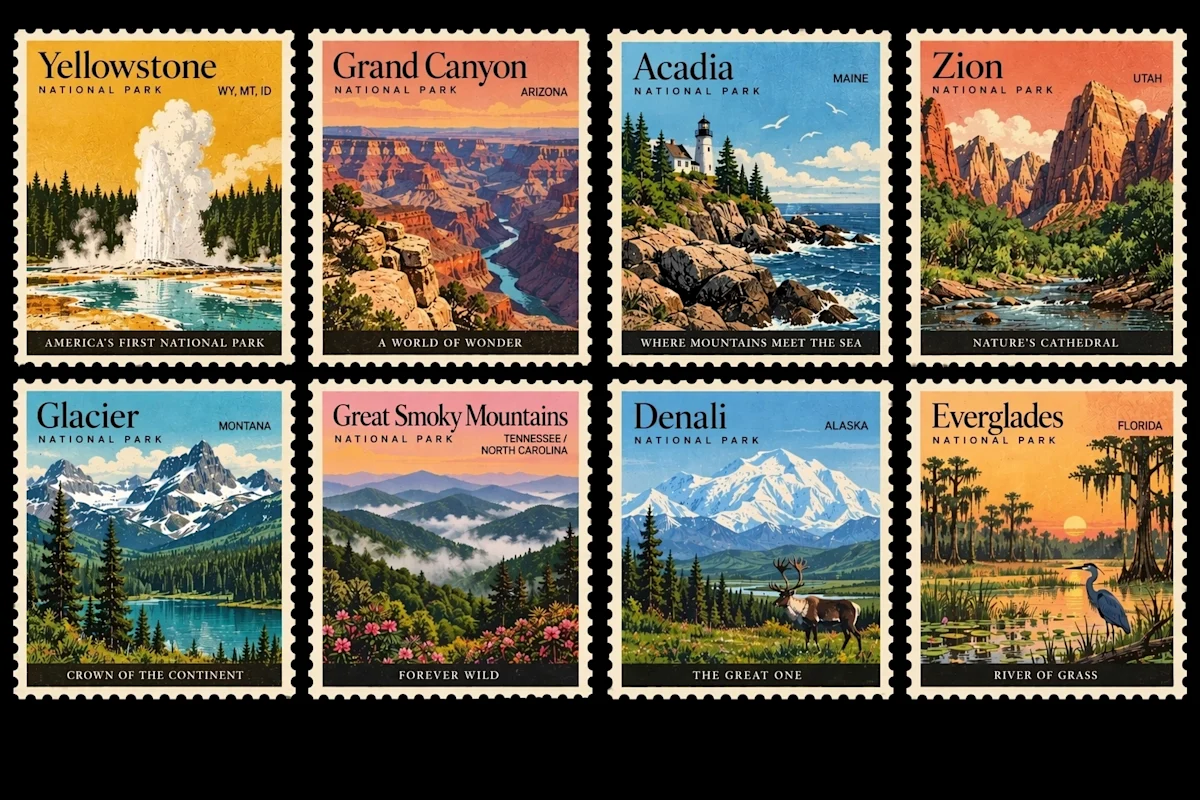
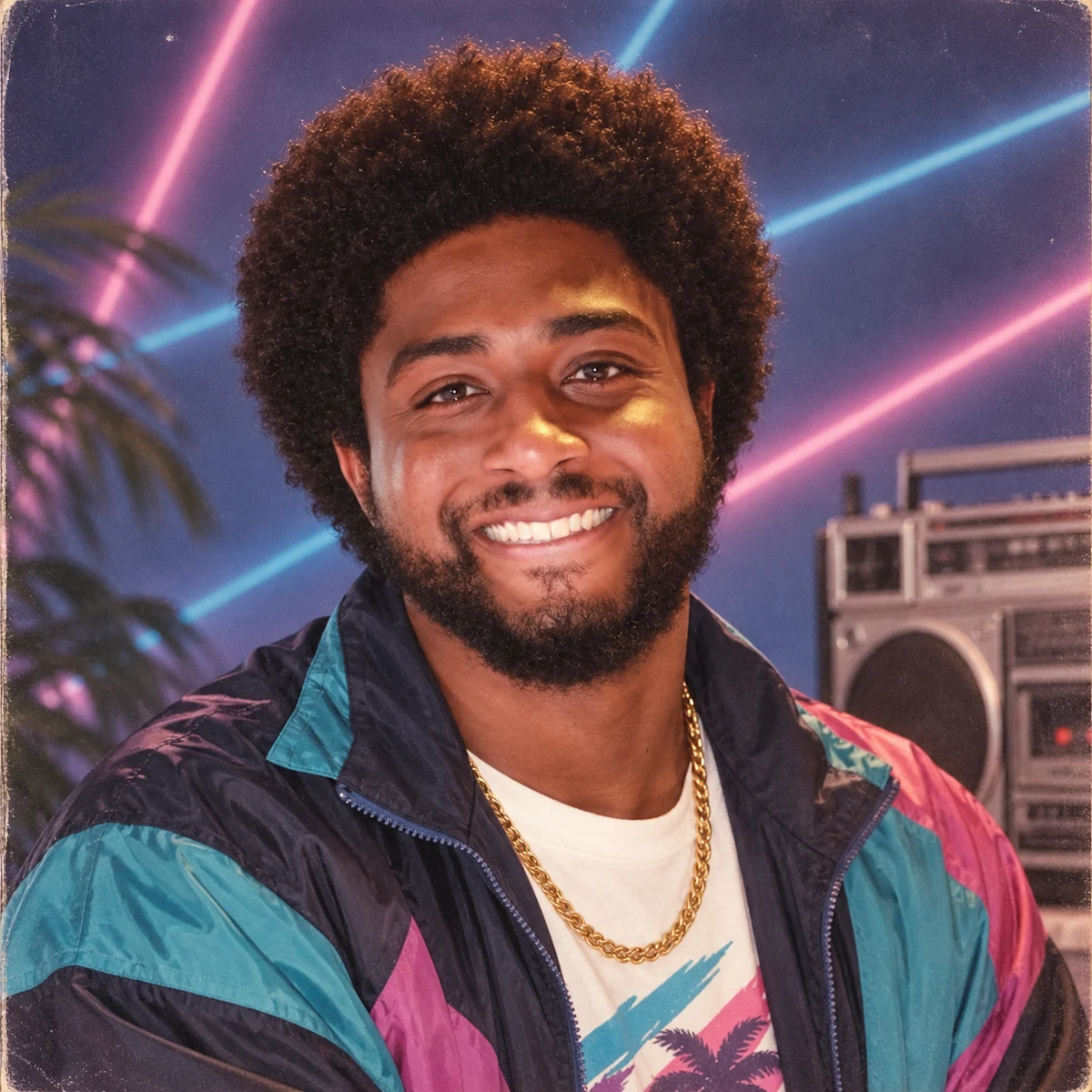
A NEW TAKE ON YOUR ORIGINAL
Start with a reference and tell Image 2.5 what you want to change. Be equally clear about what should stay: the subject, framing or feeling.
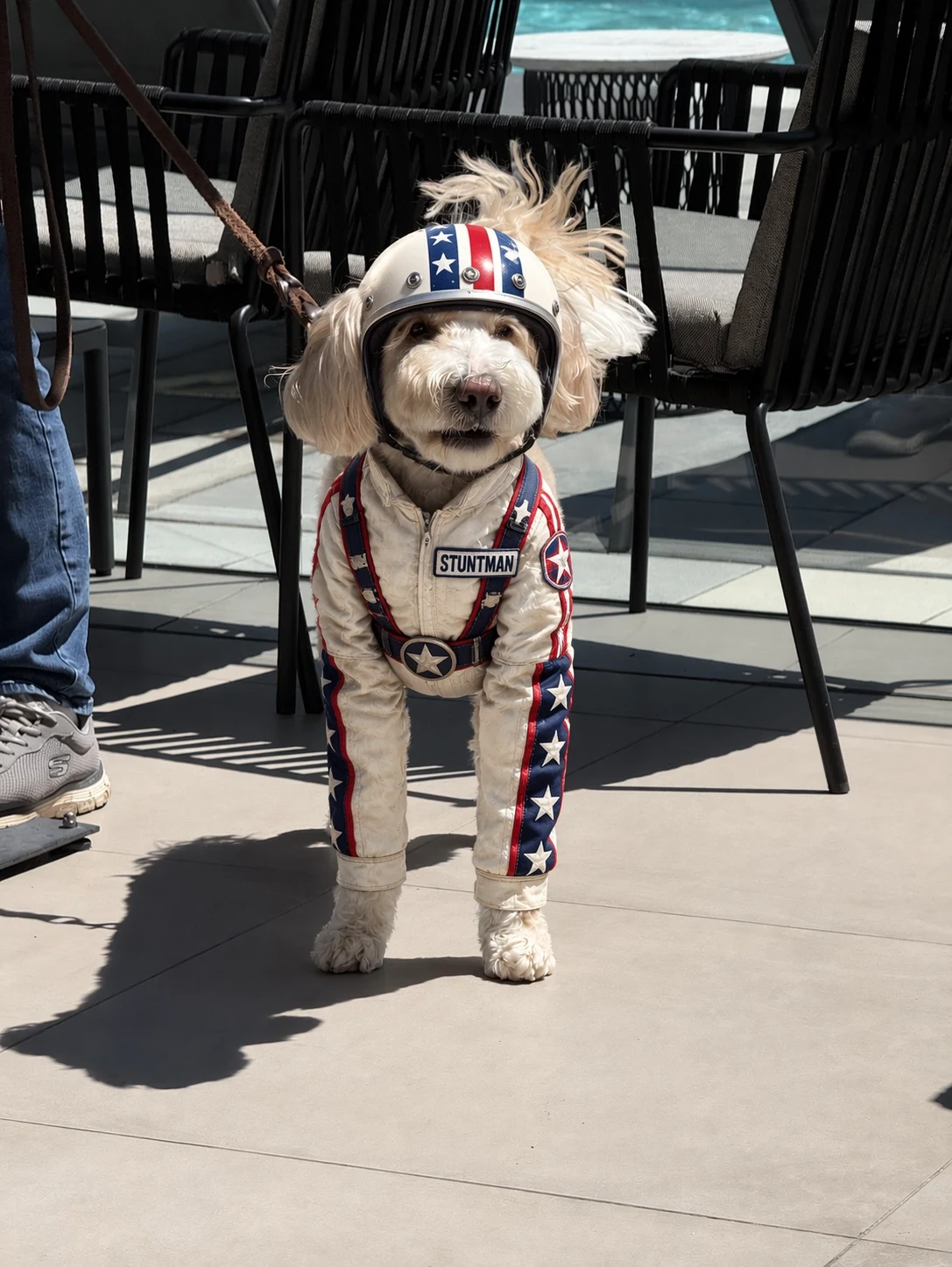
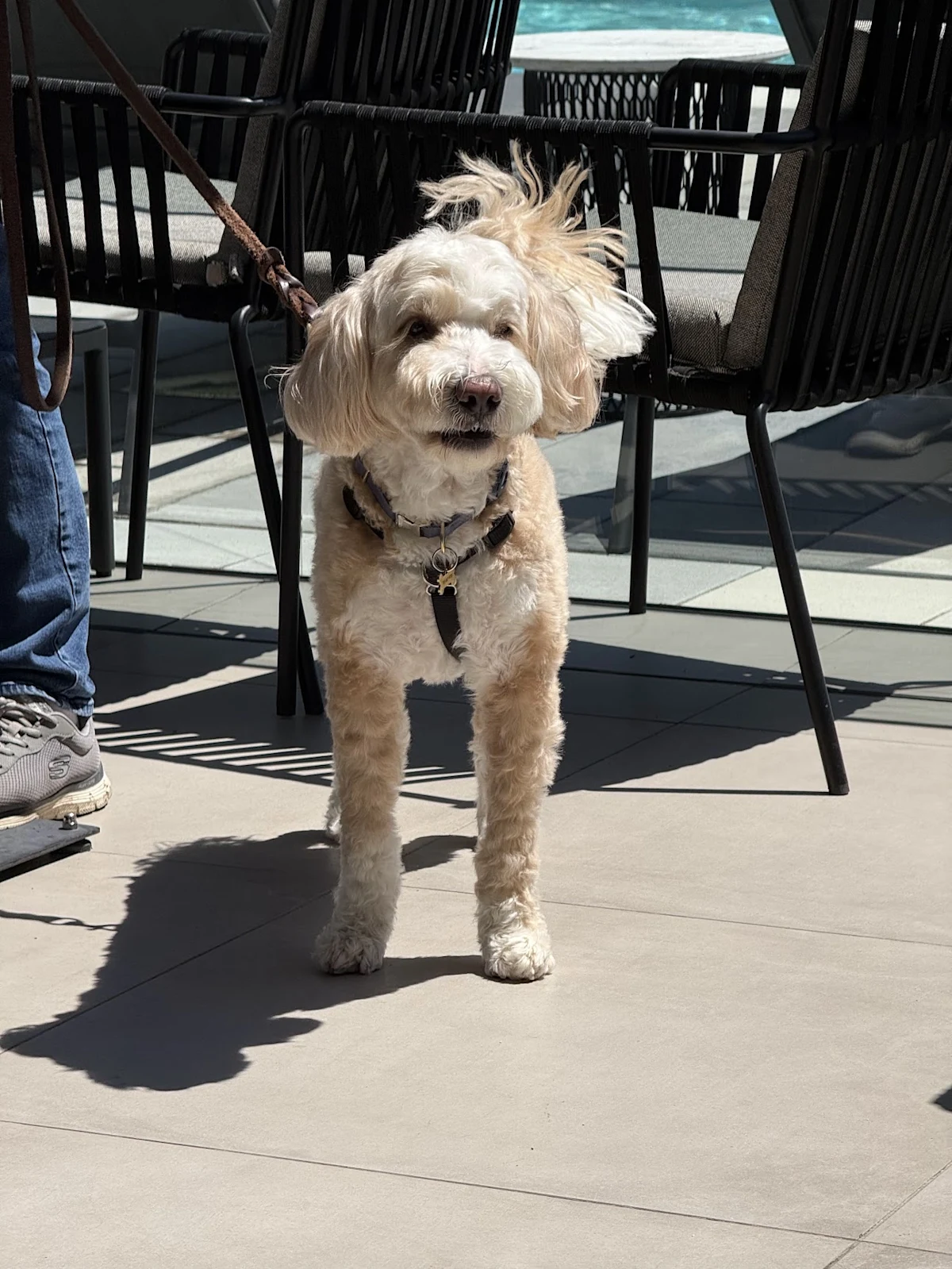 OriginalEdited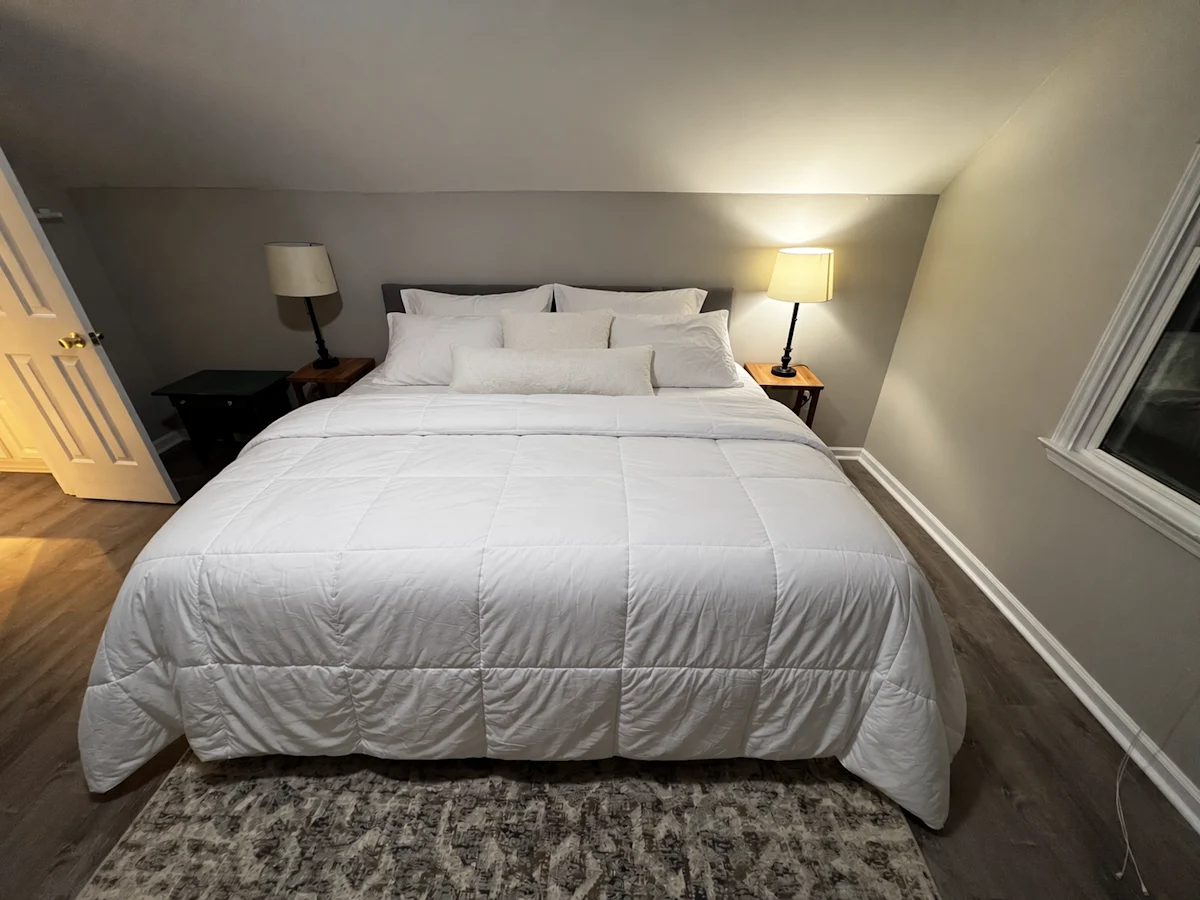
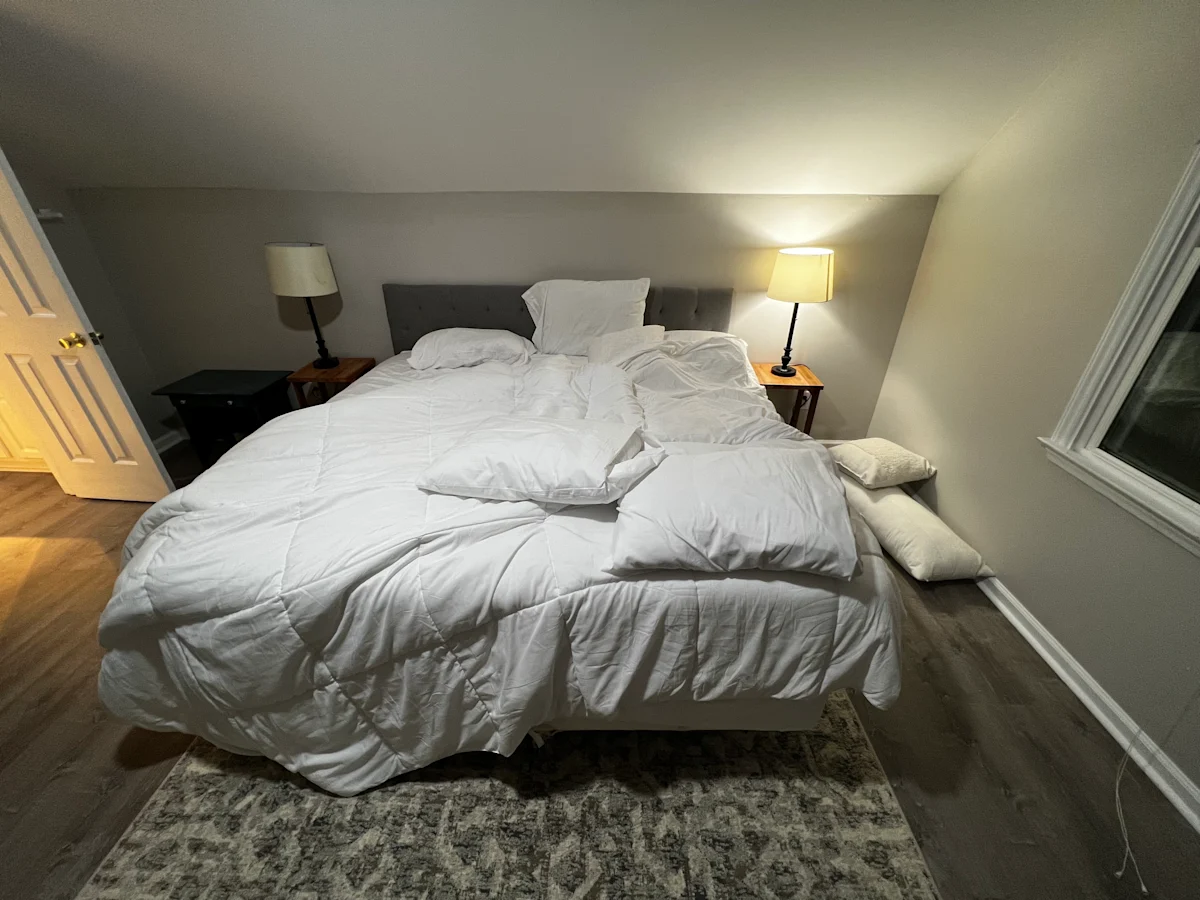 OriginalEdited
WHAT CHANGED IN 2.5
OpenAI published the ChatGPT Images 2.5 system card on 8 September 2026. The points below follow what it describes.
OpenAI reports more consistent results when editing: the setting, style or composition changes while more of the original detail survives.
The system card credits the 2.5 release with improved infographic accuracy and layout — the difference between a legible chart and a decorative one.
Sketch-based generation, templates and shared prompts are listed as new Images 2.5 controls over the generation process.
Faster generation is a stated goal of the release, so a brief can be created, reviewed and revised in fewer minutes.
OpenAI describes a layered safety stack: policy checks before generation, plus a monitor that reviews the input images and the finished picture.
C2PA metadata and Google DeepMind’s SynthID watermarking are applied to the output, so an AI-generated picture stays identifiable.
PICK YOUR PACE
Two Images 2.5 approaches to the same creative brief. Pick the model that suits the kind of work in front of you.
THE EVERYDAY CHOICE
OpenAI positions Flare as the faster default for everyday image generation and editing. A natural starting point for exploring ideas.
ROOM FOR PRECISION
Sunburst prioritizes precision with longer generation times. Consider it for detailed layouts and carefully directed edits.
| Output size | Flare | Sunburst |
|---|---|---|
| 1K | 16 credits | 16 credits |
| 2K | 24 credits | 24 credits |
MADE FOR YOUR NEXT PROJECT
Explore poster directions, headline placement and a visual mood before choosing your final concept.
Develop a setting, experiment with palettes and find a look for your next story.
Try a different setting or art direction with a reference photo you have permission to use.
A FEW USEFUL ANSWERS
GPT Image 2.5 — also written ChatGPT Image 2.5 — is OpenAI’s image model family, available here as Flare and Sunburst. This independent site provides a workspace for generating and editing pictures with these models.
Start with Flare to explore everyday ideas. Try Sunburst when your brief needs more precision and you can allow a longer generation time. Review the output against your own requirements.
Yes. Add a reference image in the generator and describe the change. Specify which features should remain, and use images you own or have permission to edit.
Both Images 2.5 models use the same rates per image: 1K: 16 credits / 2K: 24 credits. Available sizes follow the selected model. Check the generator’s estimate before submitting.
The showcase uses ChatGPT Images 2.5 examples published by OpenAI, with attribution below. They illustrate what the model family can do; your results will depend on your prompt, references and settings.
Yes. ChatGPT Image 2.5 and ChatGPT Images 2.5 are both used for OpenAI’s September 2026 release; the system card uses the plural. The two models it names are Flare and Sunburst, which is how they appear in the generator above.
Start with a sentence. See where it takes you.
Create your first Image 2.5 picture